
Coinbar has no app in Google Play or the App Store. Phone access works in two ways: open the site in a browser and add a shortcut to the home screen (PWA), or install the APK file on Android. This guide explains both in short steps and lists the mistakes people make most often on mobile. The details rest on the brand's own statements, and the interface can change over time. Access to the site may be restricted in your country, and the service is for adults aged 18 and over.
- Opening Coinbar on a Phone
- Adding a Home Screen Shortcut (PWA)
- Installing the APK on Android
- Notes for iPhone and iPad
- Staying Safe on a Phone
- Common Phone Problems
- FAQ
Opening Coinbar on a Phone
The site loads in a responsive layout that rearranges itself to the screen width. Betting slip, slots and live tables share one account, and the balance is the same on every device. A phone is quick, but its small screen tucks the address bar away, which makes lookalike pages easier to miss. Type the address yourself each time and check the padlock.
Adding a Home Screen Shortcut (PWA)
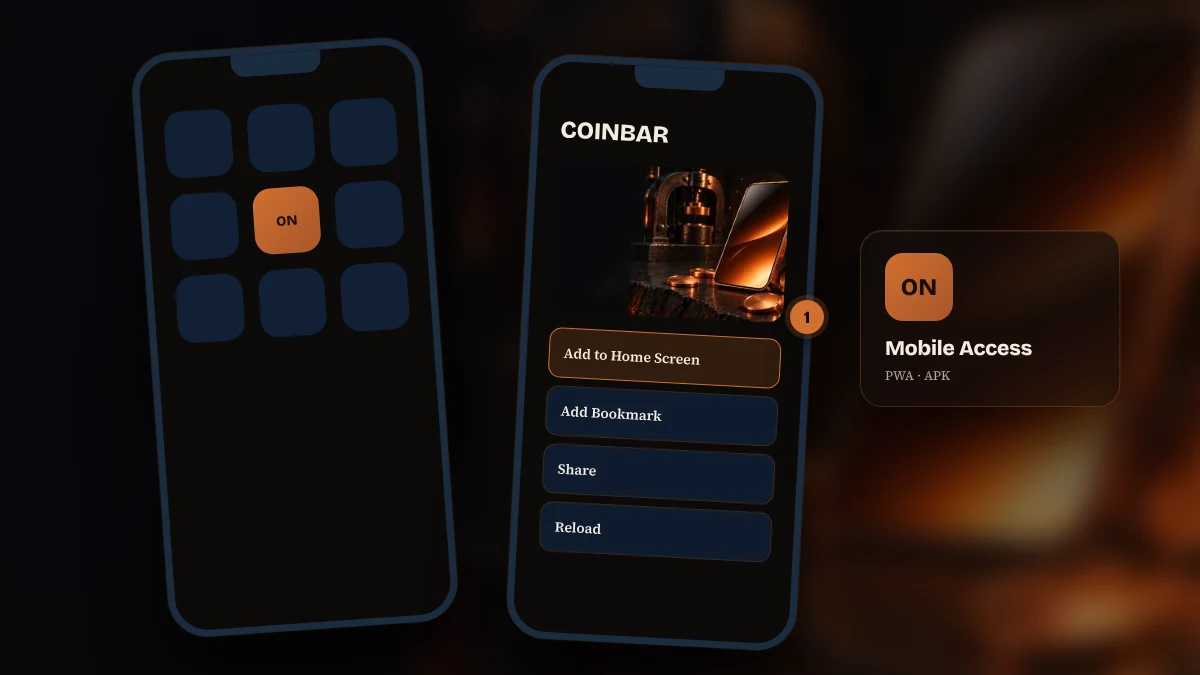
A PWA tells the browser to open the site full screen, the way an app would. It writes no extra file to the phone, needs no store and can be removed in a second.
- Type the verified current address into your phone's browser.
- Open the browser menu: the share icon on iPhone, the three dots on Android.
- Tap "Add to Home Screen".
- Confirm the shortcut name and try the new icon.
The picture below shows the menu and the shortcut option as an example.
A shortcut remembers the address it was made with. If the domain changes, the old one stops opening; verify the new address, delete the shortcut and add it again. How to find the current address is covered on the current address page.
Installing the APK on Android
An APK is a package installed from outside a store. Take it only from the link in the brand's verified announcement channel, because files from search results or private messages can carry malware. Installation asks for the "unknown sources" permission: switch it on just for the install and off again afterwards. If the file name or size differs from the announcement, do not install it.
Once installed, the app acts as a shell around the mobile site, and your login details stay the same. When a new version is announced, update only through the official channel. If your phone has a security scanner, let it check the file first.
Notes for iPhone and iPad
There is no APK for iOS and no store app. Open the site in Safari and choose "Add to Home Screen" from the share sheet; iPad works the same way. Keep the system updated, since older versions may show certificate warnings. Other browsers may place the option elsewhere, so Safari is the smoothest route.
Staying Safe on a Phone
Keep the screen lock and fingerprint or face unlock on. Do not move money over public wifi. Save your password only on your own phone and sign out on shared devices. If the phone goes missing, change the e-mail and account passwords from another device first. Allow notifications only from the official announcement channel and give no SMS access to apps you do not know.
Common Phone Problems
If the page will not open, switch to mobile data or another network and compare the address with the announcement. If the layout looks broken, clear the browser cache. If the shortcut throws an error, delete and recreate it. If the session drops after a network change, reload the page. If a live stream stalls, lower the picture quality. If nothing helps, write to live chat with a screenshot.
FAQ
Does Coinbar have a mobile app?
There is no official app in the stores. Mobile access runs through the site in a browser, a home screen shortcut (PWA) and an APK file for Android. Treat other files that circulate under the app's name with suspicion and use only the link on the brand's verified channel.
How do I add the PWA shortcut?
Open the verified address in your browser, tap the menu, choose Add to Home Screen and confirm the name. On iPhone the option is under the share icon, on Android in the three-dot menu. The shortcut installs no extra file, can be removed at any time and must be renewed when the address changes.
Is the Android APK safe?
Safety depends on where the file comes from. Use only the file linked on the official announcement channel, compare its size with the post and grant no unnecessary permissions. Switch the unknown-sources permission off after the install. If anything looks different, do not install it.
What do I do if the address changes on mobile?
Verify the new address through the announcement channel, delete the old shortcut and add it again with the new address. Your account and balance stay the same and you sign in with the same details. Typing the address by hand is the safest protection against copies.
The mobile rule is simple: take the address from the channel, create the shortcut yourself and download files only from a verified source. For account steps see the login page and for game sections see the games page.
Some links on these pages are partner links and may earn us a fee; scores are set by the method page, not by the fee.